

Offer flow via Promotion API
1
Import offers from external systems
Offer import is possible from external systems, in case there is another system that can generate offers or allocate coupons.- V2 Bulk import via POST /promotion/v2/bulk/campaigns - send a flat array of offers
- V2 Single import via POST /promotion/v2/campaigns - create a single offer
- V3 Bulk import via POST /promotion/v3/bulk/offers - send a flat array of offers
- V3 Single import via POST /promotion/v3/offers - create or update a single offer
2
Create offers in the Lobyco Admin Tool
Creation directly in the Lobyco Admin Tool where an end user (e.g. marketeer) adds the necessary content regarding discount rules, thresholds, App presentation, and possible segmentation.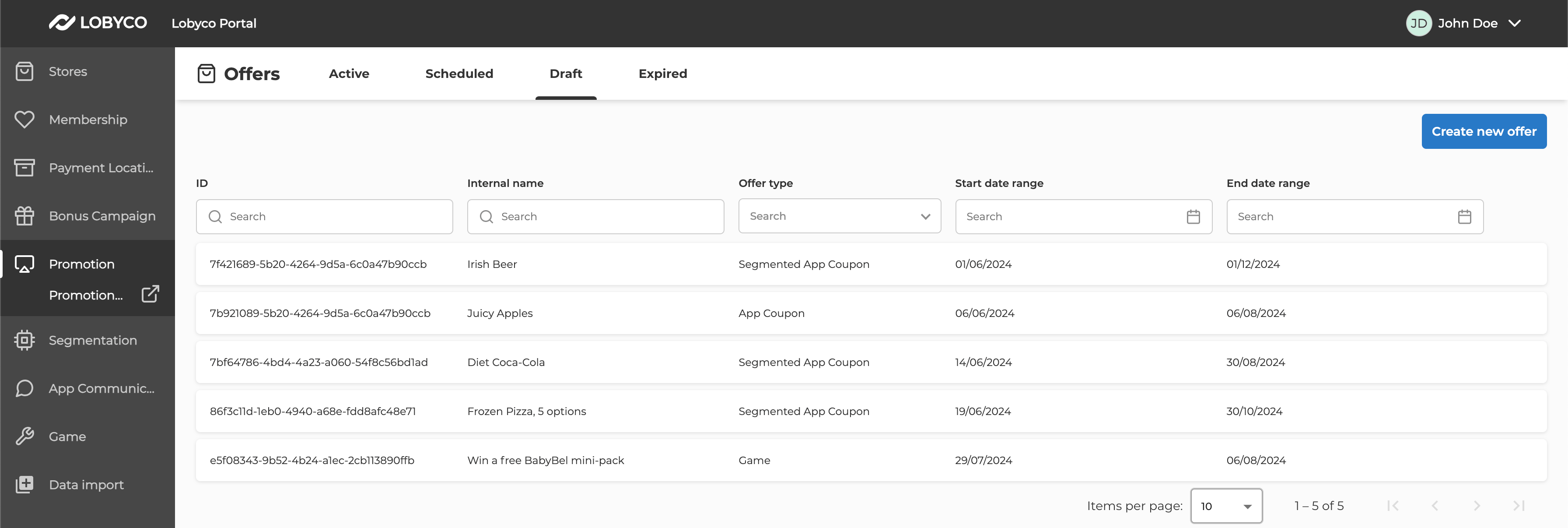
Publish an Offer
Before the Offer can be displayed in the app, you need to publish it. Before the Offer can be published, populate the following fields:- Stores or Chains
- Title, description and imageUrl in content
- Discount details, including rule types and values, threshold types and values and list of impacted products and categories.
- Depending on discount types, you might need to specify more rules. See discount requirements section below or examples on any of the endpoints.
Discount type requirements
SimpleLine (Product Discount)
Product Discount should always have only a single rule defined. Included Product Ids or Category Ids have to be defined to Publish.impactLevel should be set to Line.
SimpleTotal (Basket Discount)
Basket Discount should always have only a single rule defined.impactLevel should be set to Total. Only Amount threshold type is supported. For discount types, FixedPrice is not supported for basket, use any of the other 4 discount types instead. Excluded Product Ids or Category Ids are optional.
SimpleQuantity (Threshold Discount)
Product Discount should always have only a single rule defined. Included Product Ids or Category Ids have to be defined to Publish.impactLevel should be set to Line.
MixAndMatch (Mix & Match)
At least 2 rules have to be defined. Any combinations of threshold and rule types are supported.impactLevel should be set to Line. Included Product Ids or Category Ids have to be defined to Publish. Product Ids and Category Ids for each rule have to be unique. If you re-use the same Product/Category in 2 or more rules, Offer creation will fail. If you need to re-use the same Product in 2 rules, consider using some other discount type instead, like SimpleQuantity.
MixAndMatchTotal (Mix & Match Total Value)
At least 3 rules have to be defined.MaxNumberApplyPerReceipt should always be 1. impactLevel should be set to Total.
This discount can have multiple precondition rules and single effect rule, that will be applied when all preconditions are satisfied. Precondition rules should have thresholdValue greater then 0, and they should all have the same thresholdType. Precondition rules ignore any rule types and values, for safety always set type to Amount and value to 0.
A single calculation rule should be defined. Calculation rule should have thresholdValue equal to 0, and it does not support any Product or Category filters.
QuantityStep (Quantity Tier)
At least 2 rules have to be defined.ThresholdType should always be set to Quantity. MaxNumberApplyPerReceipt should be at least as large as the maximum thresholdValue from the rules. All rules should have the same Product Ids and Category Ids defined. impactLevel should be set to Line.
TotalStep (Basket Tier)
At least 2 rules have to be defined.ThresholdType should always be set to Amount. MaxNumberApplyPerReceipt should be always 1. If Product Ids and Category Ids are defined, they should be the same among all rules. impactLevel should be set to Total.
Assign coupons to customers via Coupon API
- Assign multiple coupons for a single offer to multiple customers in two ways
- Attach a segmentation file through the Admin Tool
- Populate
audienceIdin theOffermodel